Short version: connecting PayFast to Shopify is a two-sided setup. You start the install from your PayFast dashboard, not Shopify's, then finish activating it back in Shopify. There's also one setting worth confirming afterwards (Payment Capture), if it's ever off, your orders will sit as "unpaid" even when customers have genuinely paid. This guide covers the full install, that setting, and fixes for the most common errors.
If you've read our guide on setting up a Shopify store in South Africa, you'll know Shopify Payments doesn't work here, so PayFast is one of the local gateways that fills that gap. This post is the deep dive on PayFast specifically: connecting it properly, and fixing it when something goes wrong.
Before you start
You'll need two things already in place:
- A PayFast merchant account (sign up at payfast.io if you don't have one yet).
- A live or trial Shopify store, with your store location set to South Africa and currency set to ZAR — PayFast only processes in rand, so if either of those is wrong, PayFast won't even appear as an option later.
Step 1: Start the install from PayFast, not Shopify
This trips people up because most Shopify app installs start from the Shopify App Store. PayFast doesn't work that way.
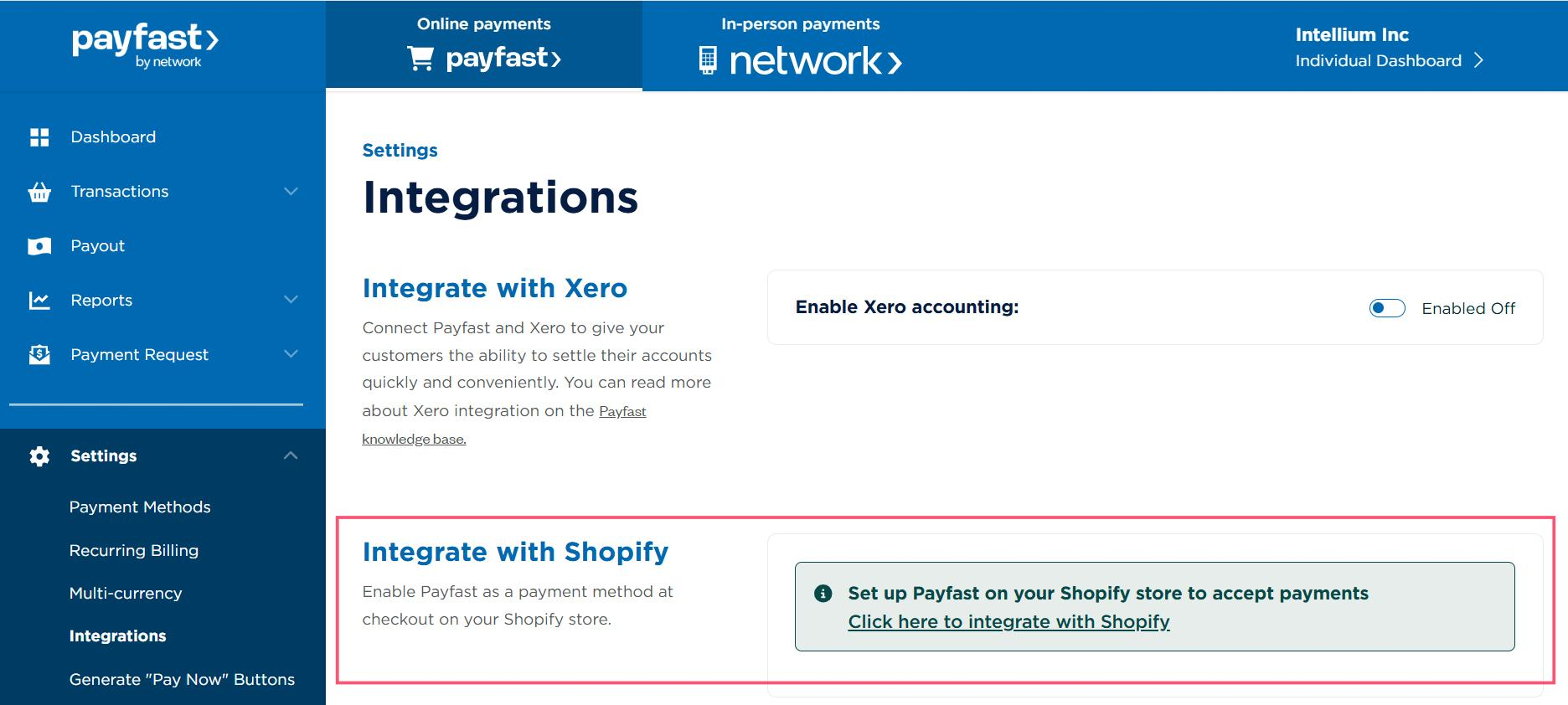
- Log in to your PayFast merchant dashboard.
- Go to Settings, then Integrations.
- Find the Integrate with Shopify section and click "Click here to integrate with Shopify."
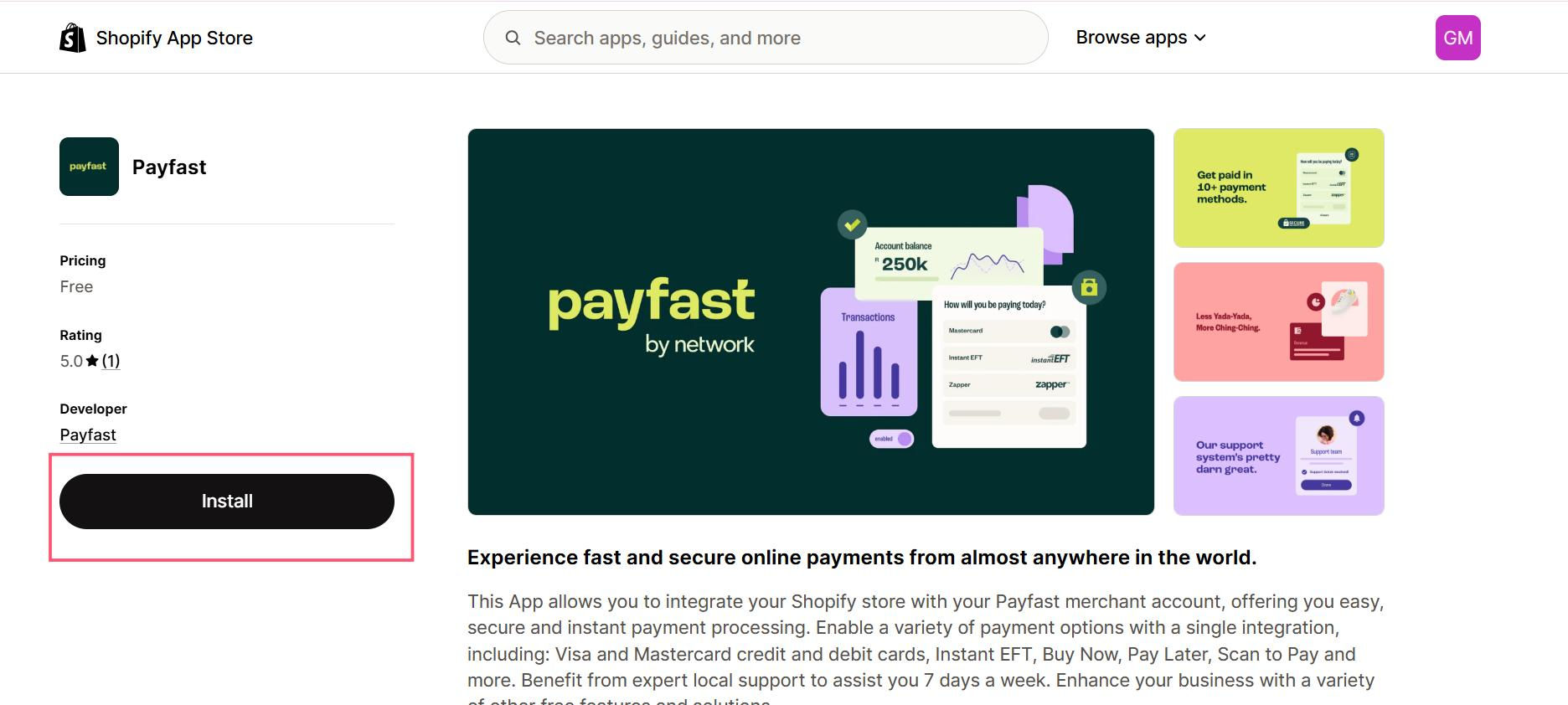
- You'll be redirected to PayFast's Shopify App Store listing. Click Install.
- You'll be prompted to log in to your Shopify store if you aren't already. Log in.
- Shopify will show you the app's permissions and an Install button. Click it to confirm.
- You'll land back on your PayFast dashboard with a confirmation that the app installed successfully.
Step 2: Activate PayFast inside Shopify
Installing the app connects the two accounts, but PayFast isn't live at checkout yet. You need to switch it on from Shopify's side too.
- In your Shopify admin, go to Settings, then Payments.
- Click Add payment method, switch to Search by provider, and type "Payfast".
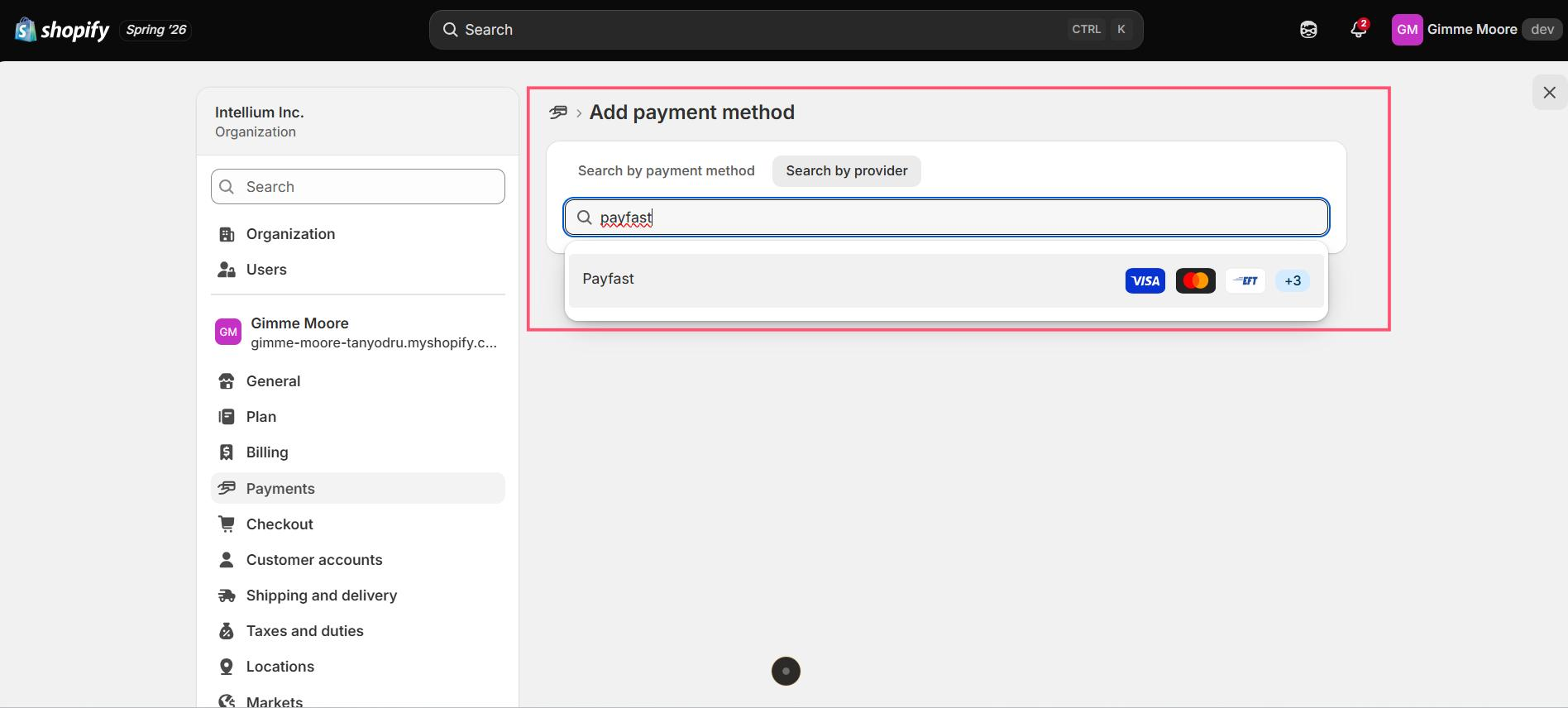
- Click the Payfast result. This opens a list of everything the app enables at once: Visa, Mastercard, PayFast Instant EFT, mobicred, Zapper and Payflex, all switched on by default. You don't pick one, PayFast brings the whole bundle.
- Click Activate.
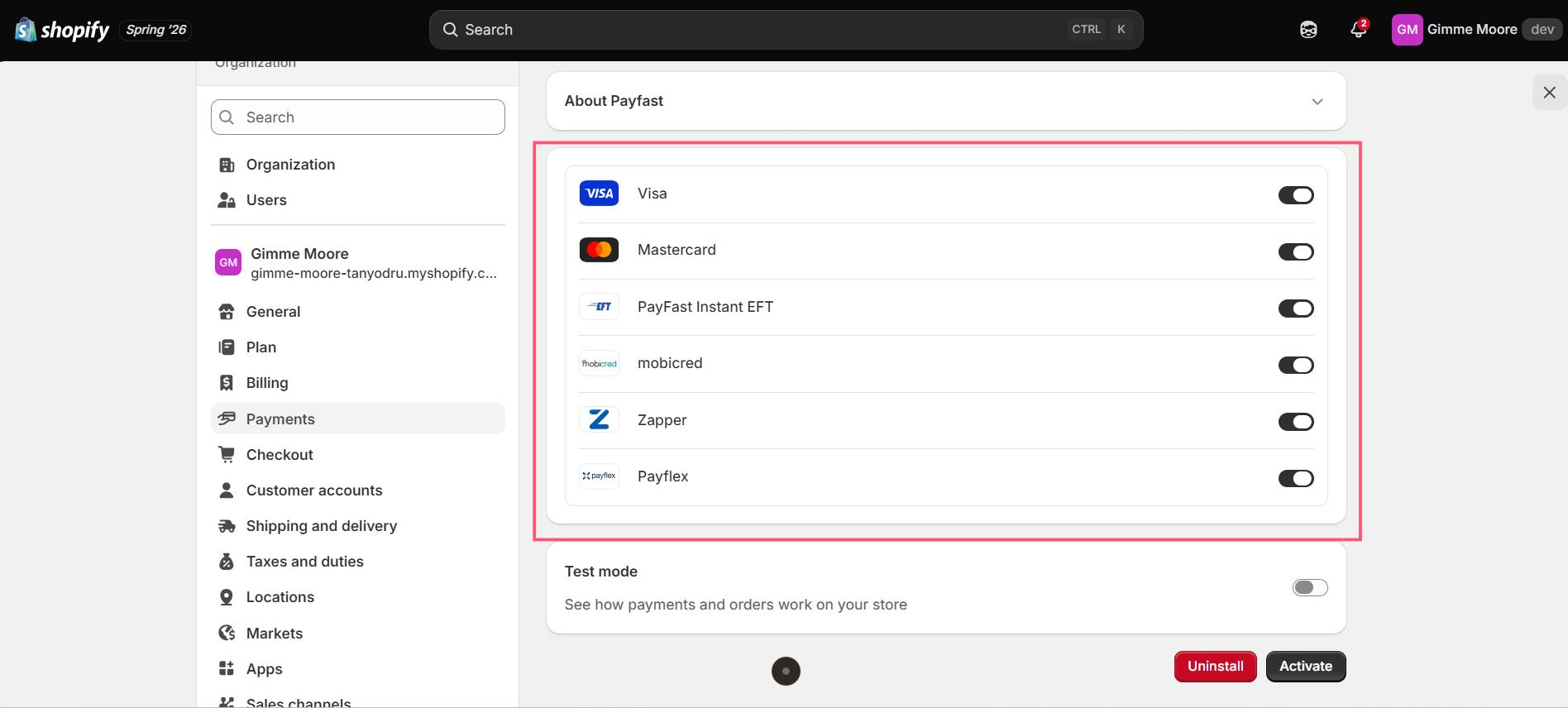
PayFast will now show as active in your payments settings, and customers can pay with any of those methods at checkout.
Step 3: Confirm your payment capture setting
This one setting decides whether a paid order shows as "paid" straight away or sits looking unpaid until someone steps in. Shopify's default for this is actually the correct one for PayFast, so most stores never need to touch it, but PayFast has an entire support article dedicated to store owners whose orders weren't updating because this had ended up on the wrong option. It costs nothing to check.
- In Shopify, go to Settings, then Payments.
- Scroll down to Payment configuration, then click Payment capture method.
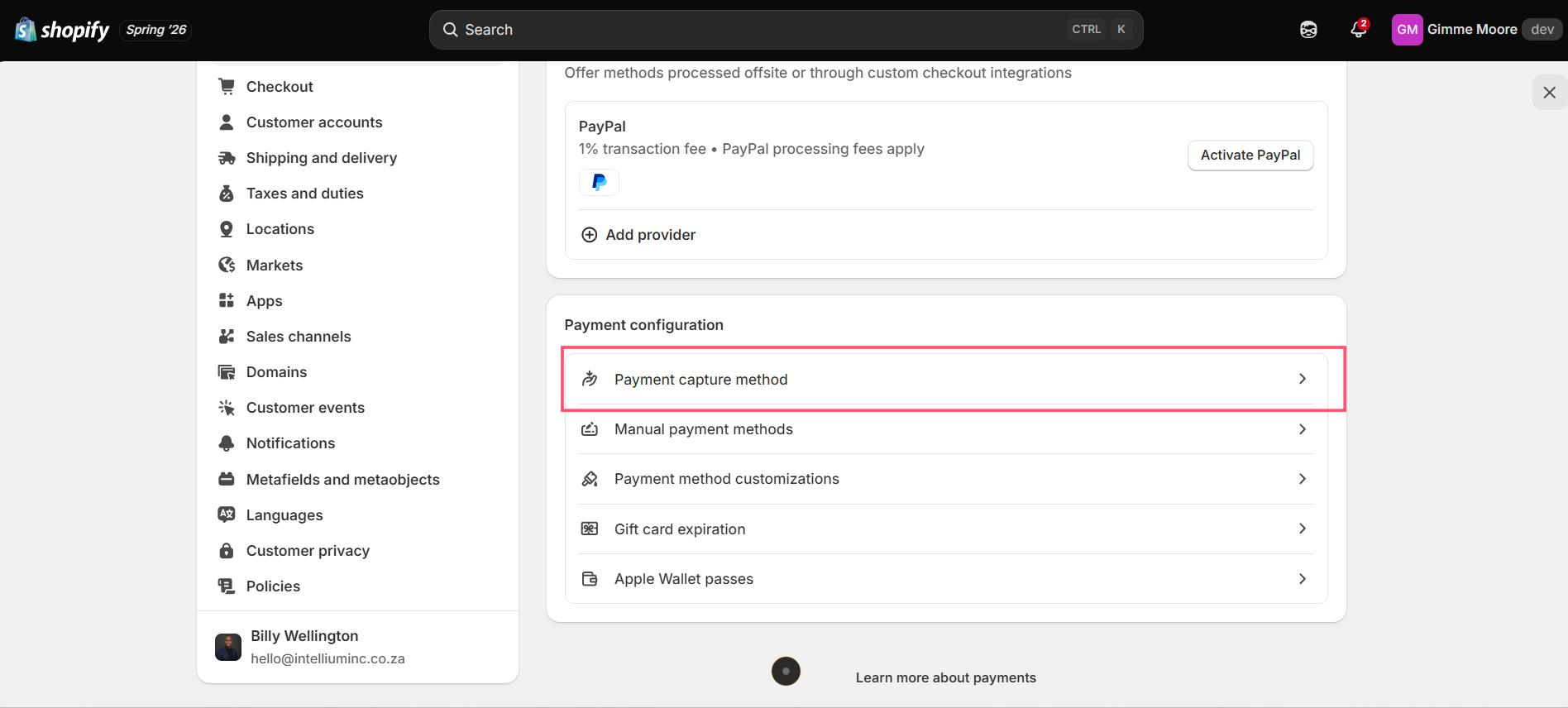
- You'll see three options: Automatically at checkout, Automatically when the entire order is fulfilled, and Manually. Make sure Automatically at checkout is selected, since PayFast confirms payment straight after checkout, not once you've shipped anything. Click Save.
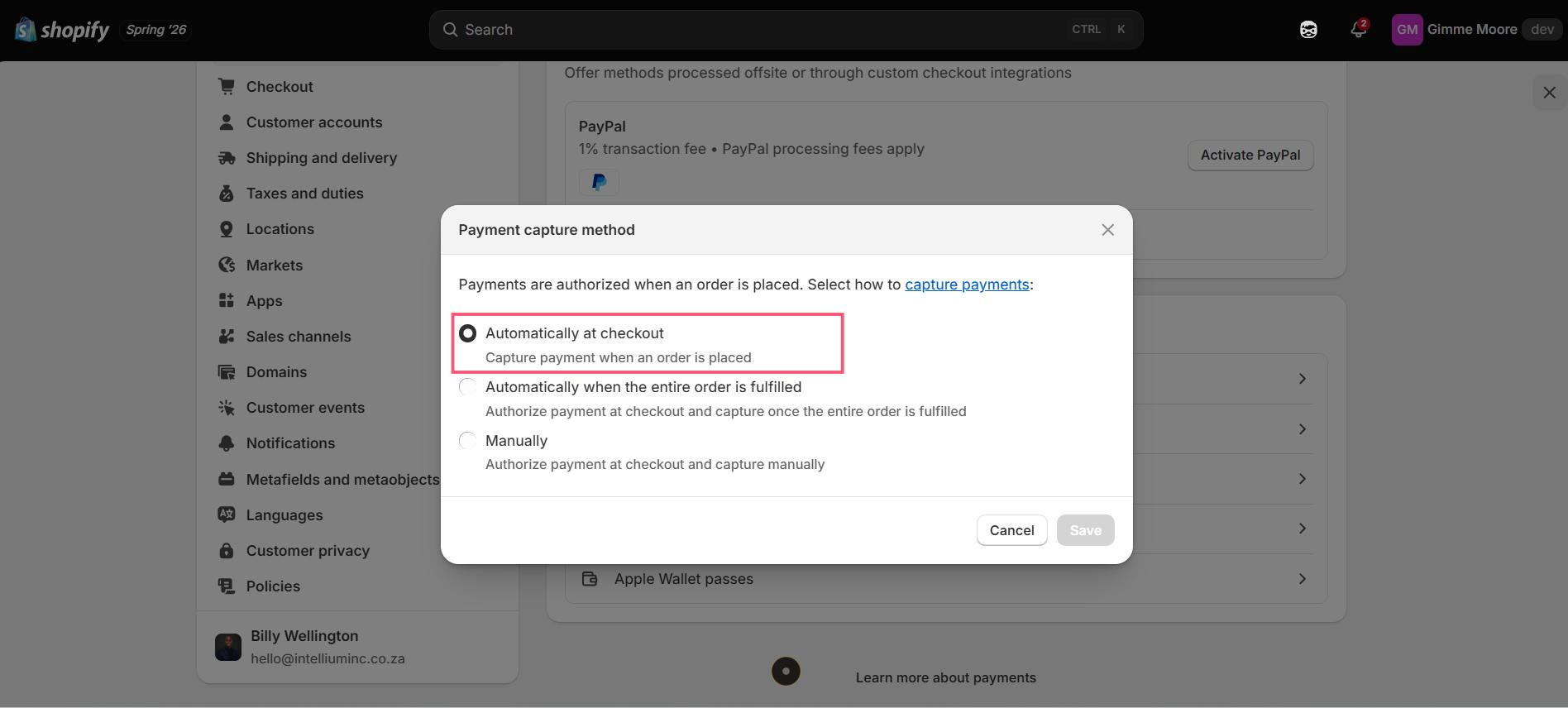
With this set correctly, new orders paid through PayFast flip to "paid" on their own, with no manual step from you.
Common errors and how to fix them
PayFast isn't showing up in the Shopify payment gateway list
This almost always comes down to store settings, not the app itself. Check two things: your Shopify store address must be a South African address, and your store currency must be set to ZAR. PayFast won't appear as an installable option until both are correct.
You get a 500 error when redirected from Shopify to PayFast at checkout
This is a credentials mismatch. Your PayFast Merchant ID and Merchant Key, entered on the PayFast configuration page inside Shopify, need to match your PayFast account exactly, with no extra spaces from copy-pasting. One sneaky cause worth knowing: browsers sometimes treat the Merchant ID and Key fields like username and password fields, and will auto-fill them with something else (often a saved email address) after you've unchecked Test Mode. Always double-check both fields are showing your real credentials before saving, especially right after switching off test mode.
"The supplied variables are not according to specification: currency"
PayFast only transacts in rand and doesn't do currency conversion. If your Shopify store is set to show prices in any currency other than ZAR (including Shopify's automatic currency conversion for international visitors), this error will appear at checkout. Set your store's base currency to ZAR to fix it.
Orders aren't updating to "paid" status
Check the Payment Capture setting from Step 3 above. It should be set to Automatically at checkout, if it's been switched to Manually or Automatically when the entire order is fulfilled instead, orders paid through PayFast will keep showing as unpaid until someone captures them by hand. Set it back to Automatically at checkout and this resolves itself for all future orders (it won't retroactively fix orders already stuck as unpaid, so you may need to manually mark a few historical ones as paid once you've confirmed payment came through on PayFast).
How to reconcile PayFast payments with your Shopify orders
Because Shopify generates its own order references and PayFast doesn't automatically share Shopify's Order ID back, matching the two up isn't always obvious at first. PayFast does pass through a reference field (labelled Custom Str4 in your PayFast transaction history) that ties back to the specific Shopify order, so that's your bridge between the two systems. There are a few ways to use it depending on how many orders you're checking:
- One-off order: open the order in Shopify, check the order timeline for the PayFast payment line, and view the payment ID from there. Then search PayFast's transaction history for that reference.
- A handful of orders: search directly in Shopify's Orders screen using the Custom Str4 reference from a PayFast transaction to jump straight to the matching order.
- Bulk reconciliation: export your orders from Shopify as a CSV, export your transactions from PayFast as a CSV, and match the two files using the reference columns in a spreadsheet. Worth doing monthly if you're doing your own books, or handing to your bookkeeper as a matched export.
Rather not deal with any of this yourself?
We set up PayFast (or Yoco, or Peach) on Shopify stores properly the first time, capture settings and all, as part of every build we do.
Quick answers
Do I install PayFast from the Shopify App Store?
No. The install starts on PayFast's own dashboard, under Settings then Integrations. You finish activating it back inside Shopify's payment settings afterwards.
Why isn't PayFast showing up when I search for it in Shopify's payment methods?
Check that your Shopify store address is set to South Africa and your store currency is ZAR. PayFast won't appear as an option until both are correct.
Why are my Shopify orders not marked as paid even though the customer paid?
Check the Payment capture method under Settings, then Payments in Shopify. It should be set to "Automatically at checkout". If it's on "Manually" or "Automatically when the entire order is fulfilled" instead, switch it back and future orders will update on their own.
Can PayFast process payments in other currencies?
No. PayFast only processes in South African rand. Your Shopify store's base currency needs to be set to ZAR, or checkout will fail with a currency error.
Want it set up right the first time?
Conversion-ready Shopify stores for South African businesses, from R5,999.